
Punchlines
What is a punchline?
A short line that lands: a comeback, a quip or a mood you drop into a conversation, a comment or a story to hit the mark. ETeext offers a gallery of them, already styled — bold, italic, gothic, underlines, Zalgo, emojis — sorted by mood: Fun, Positive, Ironic agreement, Cynical, Angry, Dramatic, Zen, Meme.
They are all in English for now: a future version may include other languages.
Keep a copy of your own punchlines
If you write your own punchlines — recommended — or edit the existing ones, save them somewhere else too (Apple Notes, OneNote, a plain text file): they are kept only on this device, in the browser, and clearing the site’s data would erase them. They do not follow you from one device to another.
Where to find them
The gallery opens from the punchline button 🗯️ — the speech-bubble icon to the right of the toolbar, just left of the settings gear. On a phone it sits on the second line of the header, after Safe Mode; on a computer everything is on one line.

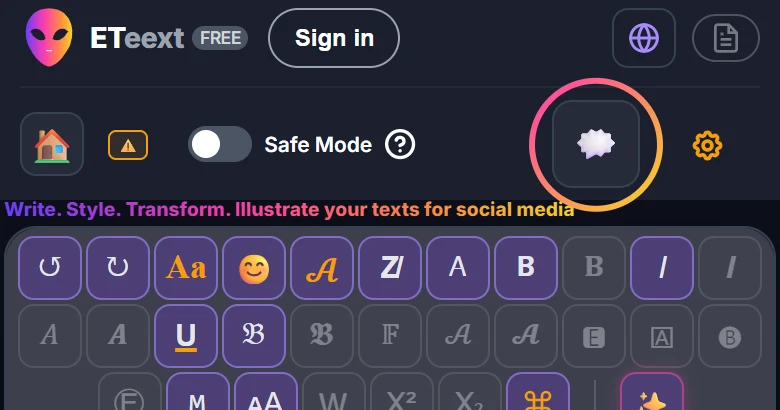
The usual way — everywhere, phone included
Open the gallery, pick a punchline, tap Copy, then paste it wherever you like: a message, a comment, a story, an email.
- Edit any punchline to your taste, or replace it with one of your own.
- Restore the original text brings back the version that shipped with the app — the text only; for the shortcut, empty its field.
- On a computer or a tablet, several punchlines fit on screen at once, and each mood has its own colour so you can spot it at a glance.
- Each language keeps its own gallery: a punchline you rewrite in French stays as it was in German, and the other way round.
The keyboard way — on a computer, with Espanso
Espanso is a free utility for Windows, macOS and Linux. Once installed, it replaces a short code you type — for example :eenf1 — with the text of your choice, in any application. It does not exist on phones.
ETeext hands it your punchlines in three steps:
On a phone, the whole Espanso block stays folded behind Espanso — set up; one tap unfolds it.
- Install Espanso from espanso.org.
- In the gallery, click Export for Espanso: a file named eteext-punchlines.yml lands in your Downloads, and the gallery shows the three steps that follow.
- Move that file into Espanso’s folder — the path is shown in the app — replacing the previous ETeext file if there is one. Espanso reads every file in that folder: nothing to rename, nothing else to install, no restart. From then on, typing :eenf1 in any application inserts the styled punchline, without going through ETeext.
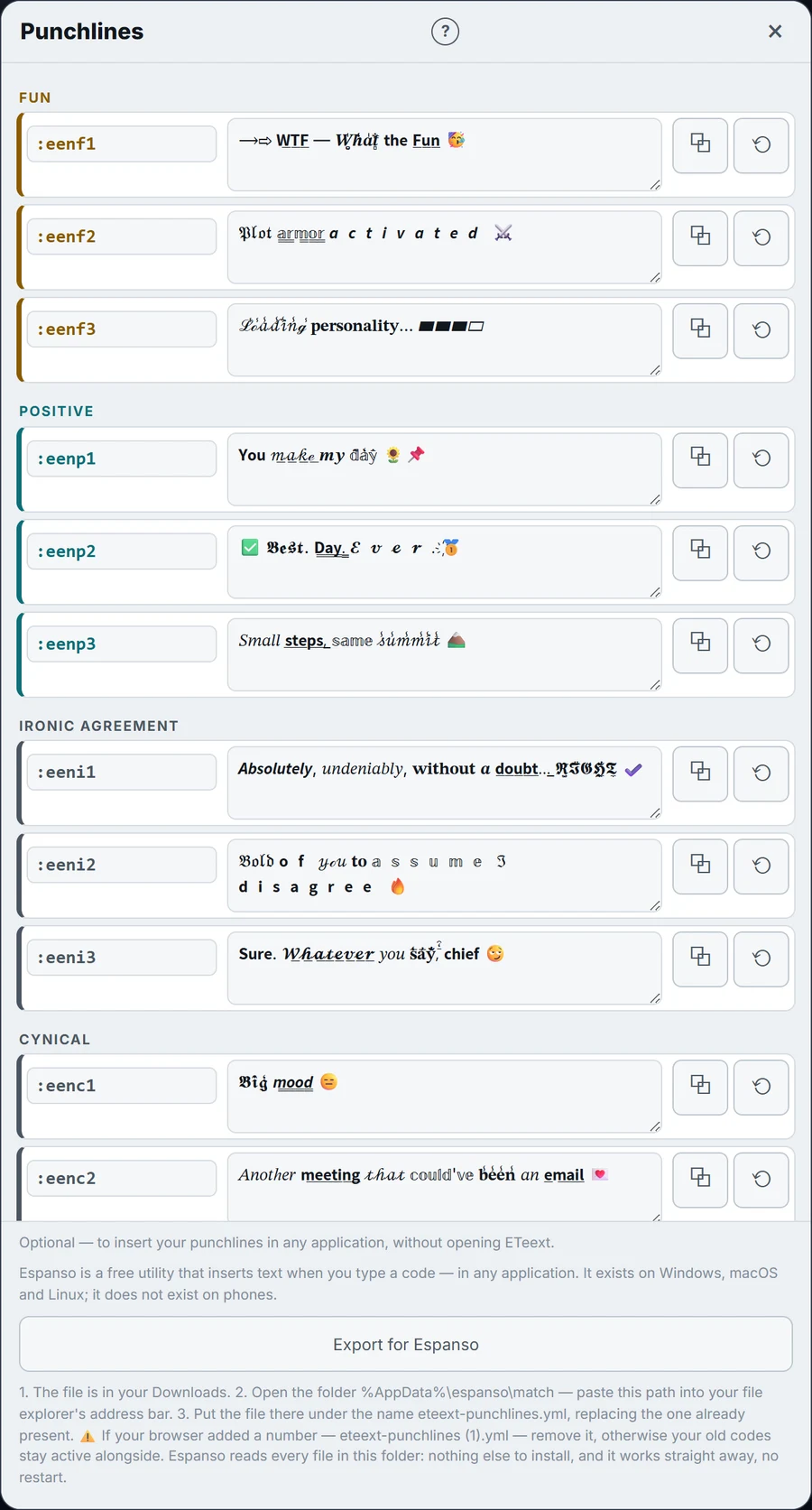
Each punchline shows its code on the left. A code is the letter e for ETeext, the two letters of the language, the initial of the mood, and a number: in English, :eenf1 to :eenf3 for Fun, :eenp Positive, :eeni Ironic agreement, :eenc Cynical, :eena Angry, :eend Dramatic, :eenz Zen, :eenm Meme; in French the same codes start with :efr. The language sits in the code because Espanso works outside ETeext, which cannot tell it which language you are writing in. The exported file holds every language at once: a code you saw in the gallery works whichever language you saw it in. Until you edit a language, its codes give the same text as the others.
The shortcut is yours to change. Next to each punchline, the Shortcut field takes whatever you will remember — :wtf, :meeting-email. Empty the field to return to the original code. If your shortcut starts with a letter or a digit, the app adds a colon in front: a bare word like wtf would expand in the middle of your sentences, every time you typed it, and you would only find out days later. Another leading sign (;, /, !) is kept as is. Two identical shortcuts break nothing: the app warns you, and Espanso asks you to choose each time. After changing texts or shortcuts, export again: the file is a snapshot.
If a punchline shows up as empty squares in some application, try it in another one: a few very basic editors, including Windows Notepad depending on its version and settings, do not always display these characters.
Exporting a second time? Your browser may save the new file as eteext-punchlines (1).yml. Remove that number and replace the old file: kept side by side, the old codes stay active.