
Safe Mode
Powerful text capabilities, available right away
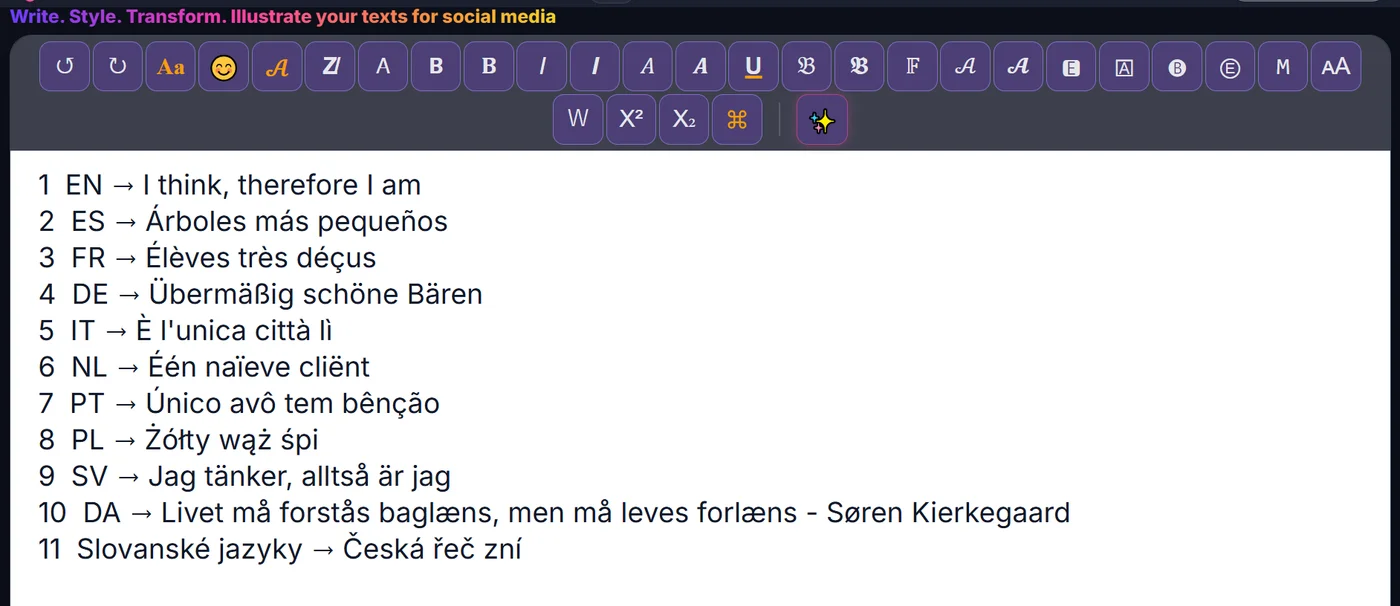
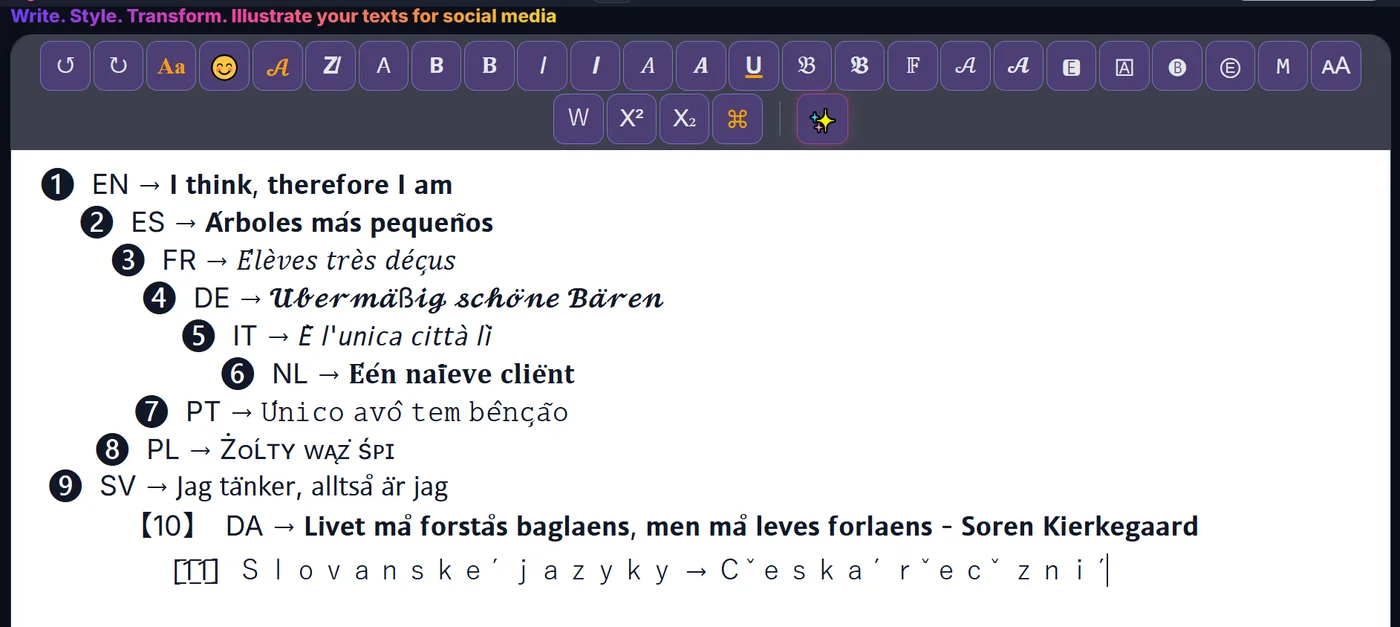
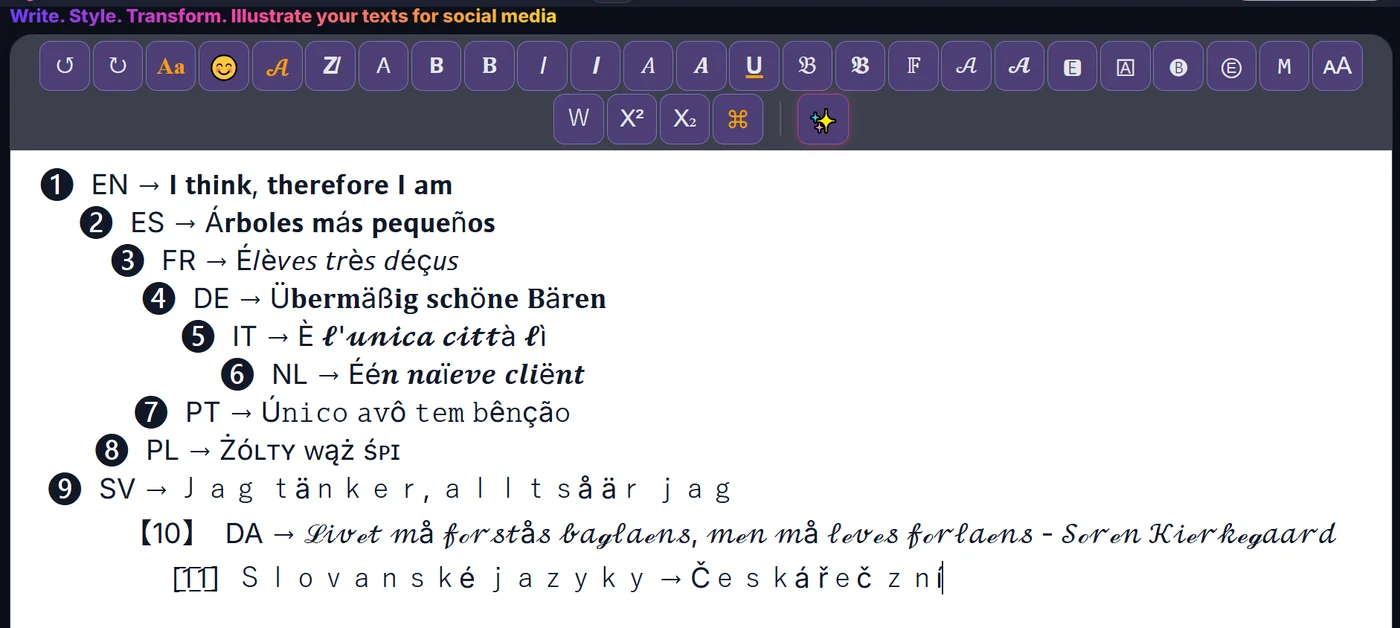
ETeext can turn your text into a wide variety of styles: bold, italic, gothic, cursive, monospace, special effects like Zalgo, and much more. It handles this even on accented characters (é, à, ç, ñ, ü, ş, ł…) that many tools break. All these styles rely on special Unicode characters, and they are fully available from the start, with no setting to turn on.
These styled characters are not just decorative fonts: they are real characters, which is what lets them work almost everywhere — on social networks, in messaging apps, in articles, in comments, in bios… This is what makes ETeext powerful.
Why do some characters show up as squares?
ETeext styles accented letters (é, à, ç, ñ…) where most tools simply strip or break them — and on browsers, modern apps and social networks they display just fine. More rarely — on an older device, or in a very basic viewer like Windows Notepad — a styled character can show up as a small empty square on the recipient side. This phenomenon has a name: it is called “tofu.” It is not an ETeext bug: the reading device simply lacks the drawing for that character.
Why do styled characters turn into empty squares (tofu)? →
What is the "Safe Mode" switch for?
Safe Mode is an option designed for exactly this case. By default, it is off: you then enjoy the full power of ETeext and all its styles.
If you notice (or fear) that your text might show up as tofu for your recipients, you can turn on Safe Mode before applying styles and text modifiers. ETeext will then replace the riskiest characters with their plain equivalent — a normal letter, readable everywhere. The result is less spectacular, but it is guaranteed to display correctly on any device.
So it is a trade-off you choose depending on the context:
- Safe Mode off (default): all effects, maximum visual impact — ideal when you know the display will follow.
- Safe Mode on: a simplified but more readable result.


What Safe Mode actually changes in your text
When you turn on Safe Mode, the transformations you apply favor the most compatible characters. Styles that rely on fragile characters, accented ones — those using effects heavily loaded with stacked marks, or certain families of uncommon letters — are replaced by their plain version rather than risking tofu.
Safe Mode also cleans what you copy and export. With it on, the text leaving ETeext is sanitized on the way out: the risky decorations are removed while your accents and special letters are preserved (é, à, ç, Ł, Ø…), so your words don't turn into empty squares (□) in more limited readers — Windows Notepad, older email clients. With Safe Mode off, what you copy keeps every bit of its styling.
What if your text is already styled? When you turn Safe Mode on while the editor already holds styled text, ETeext offers to convert it back to normal characters — “Styled text detected”. You choose: accept, or keep your text as it is. Nothing is changed without your consent, and the ↺ (Undo) button brings it back. The window never appears when cleaning would change nothing.
You can turn this mode on or off at any time: it is a simple switch. This way you can compare the two results and choose the one that suits your situation.