
The style grid: preview to learn and choose your styled text
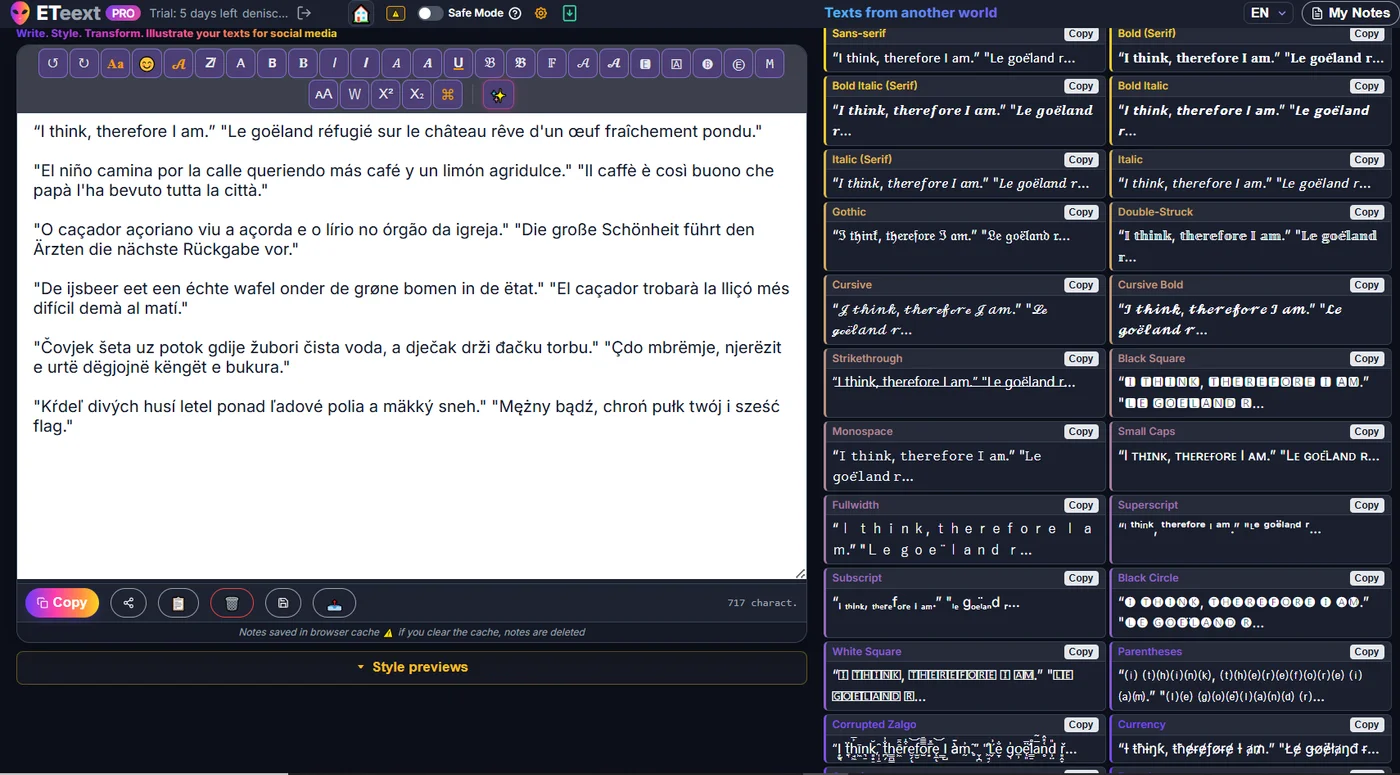
When you type in ETeext, a grid of previews shows your text transformed in many styles at once. It's your showcase to compare and learn the most common looks and choose the one you like — and it lets you copy in one click.
What is it for?
The grid shows your text side by side in about twenty styles: Sans-serif, Bold, Italic, Gothic, Cursive, Double-struck, Strikethrough, Monospace, Small caps, Circled, Parenthesized, and many more.
Each style has its own card, with its name and a Copy button. Instead of applying a style blind — especially when you're just getting to know the app — you instantly see what your text looks like in each one, and you choose knowingly.
Show or hide the grid
The grid is valuable for choosing a style, but you don't always need it in front of you, especially once you've gained some experience. A Style previews row/button lets you hide it or bring it back:
- Hidden: the editor takes all the space — ideal for focusing on writing. On desktop the text area widens; on mobile the page becomes much shorter.
- Shown again: you get all the cards back to compare styles.
Your choice is remembered: if you hide the grid, it stays hidden on your next visit (on the same device), until you show it again.

How to use it
- Write (or paste) your text in the editor.
- The grid updates live, with every keystroke.
- Spot and remember the style you like.
- Optionally click Copy on its card.
- Paste the result wherever you want (bio, post, username, message…). The text stays styled, because the style is contained in the characters themselves.
Good to know: the preview is an excerpt, the copy is complete
To stay fast even on a long text, each card shows only an excerpt (the first characters, followed by “…”). But when you click Copy, it's the entirety of your text that is copied in the chosen style — not just the excerpt. In other words: the preview is for choosing, the copy gives the full result.
In short
- The grid = a visual choice of styles, updated live.
- Copy on a card = all your text, in that style.
- The Style previews button shows or hides it as needed and remembers your preference.