
Using AI in ETeext: your Google Gemini API key
Why an API key?
ETeext's AI tools (rephrasing, correction, optimization, hashtags, translation…) are powered by Gemini, Google's AI. To make them work, ETeext needs an API key: a kind of personal password that lets the app talk to Gemini on your behalf.
This key is free and takes just a few minutes to get on Google AI Studio. You create it once, paste it into ETeext, and you're done.
Two conditions to use the AI
ETeext's AI requires two things together:
- Being PRO (trial or subscription). The AI tools are part of the PRO features: it's your PRO status that unlocks their access in the app.
- Having entered your Gemini key. This key is what actually enables the exchanges with Google's AI.
In other words: PRO gives you access to the AI tools built into ETeext (the interface, the ready-to-use functions), and your key powers the requests to Google. The two are complementary: one without the other isn't enough.
How to get your Gemini key (free)
The key is created on Google AI Studio, Google's service dedicated to Gemini. The general path:
- Go to Google AI Studio (Google's official service for Gemini).
- Sign in with a Google account (the same as your Gmail inbox, for example).
- Go to the API key creation section and generate a new key.
- Copy the key that appears (a long string of characters).
Google may ask you to accept terms of use along the way: that's normal. Creating the key is free.
If you can't find your way, feel free to run a Google search yourself, something like "how to get a Google Gemini API key": you'll easily find up-to-date guides that walk you step by step to your key.
The Google AI Studio interface changes regularly, so the exact button labels may differ. If in doubt, follow the "Learn more" link provided in the app, which points to the up-to-date resource.
How to save it in ETeext
Once your key is copied, go back to ETeext:
- Open the Settings (the icon at the top of the app).
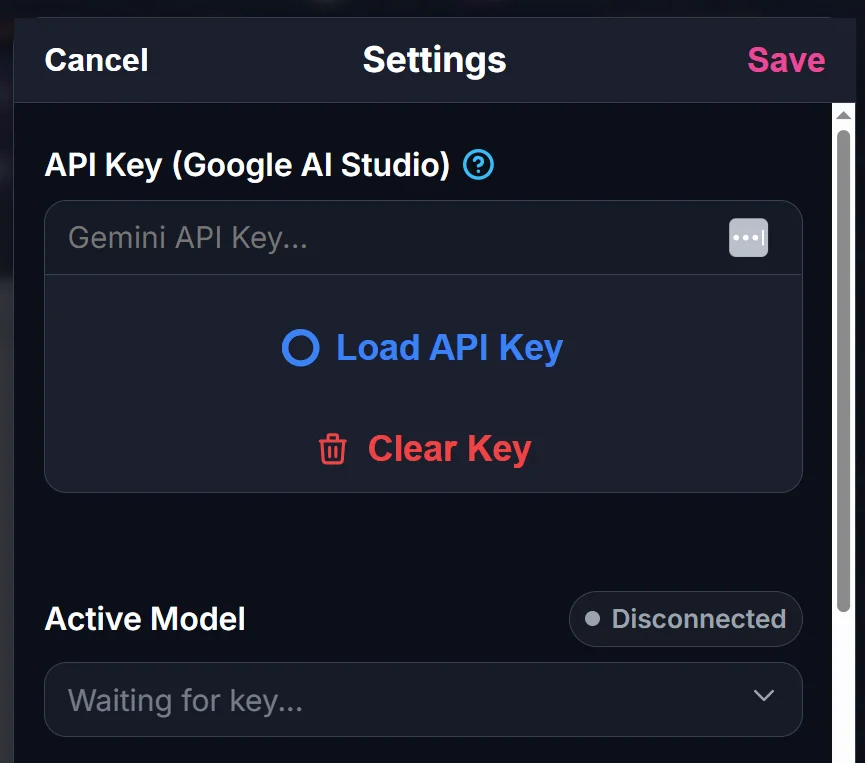
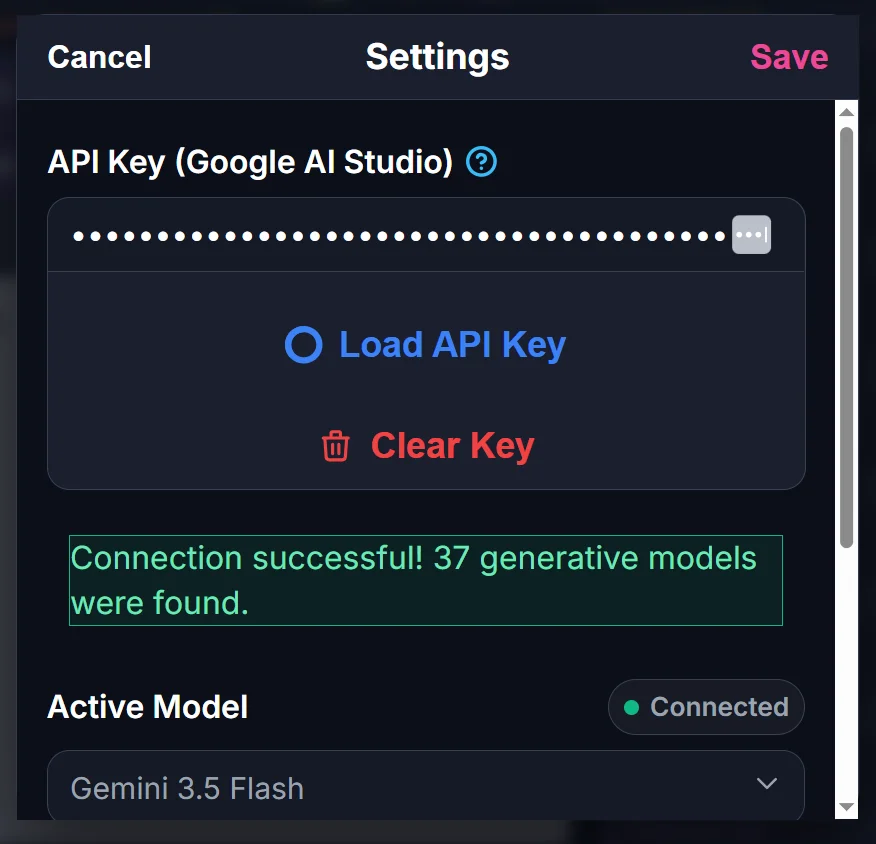
- In the API Key (Google AI Studio) section, paste your key into the Gemini API Key... field.
- Confirm with the Load API Key button.
- Remember to save your settings (Save button, at the top of the Settings window).
At any time, you can remove your key with Clear Key — handy if you change keys or use a shared device.
Need help right in the app? Next to the API Key (Google AI Studio) title, the question mark shows the tooltip "How to get a Google API key?" with a link to this page.
⚠️ Where is your key stored? (privacy)
Your API key belongs to you, and ETeext treats it accordingly. It is stored locally, in your own browser, on your device. It is not published or shared: it is used only to send your requests to Gemini when you use an AI tool.
A few best practices:
- Keep your key to yourself: it's a personal identifier, don't share it publicly.
- ⚠️ On a shared device (family computer, public terminal, library…), remember to use Clear Key when you're done, so no one else can use your key.
- If you think your key has been exposed, you can revoke it on Google AI Studio and generate a new one.
Technical section: how does it work?
For the curious, here's the gist of what happens "under the hood."
An API key is an authentication token: it identifies who is making a request to a service. When you use an AI tool in ETeext, the app sends your request (your text + the instruction) to Gemini's servers presenting your key. Google checks the key, processes the request, and returns the result, which ETeext displays.
Because the key is tied to your Google account, it's your own access to Gemini that is used — hence the importance of keeping it confidential. ETeext stores it in your browser's local storage (not on a server), which means it stays on your device; if you clear your browser data, you'll need to enter it again.
⚠️ Finally, Google offers free quotas for using Gemini, generally more than enough for personal use. Beyond that, Google's terms apply — ETeext is not involved in that relationship between you and Google.